Custom roles
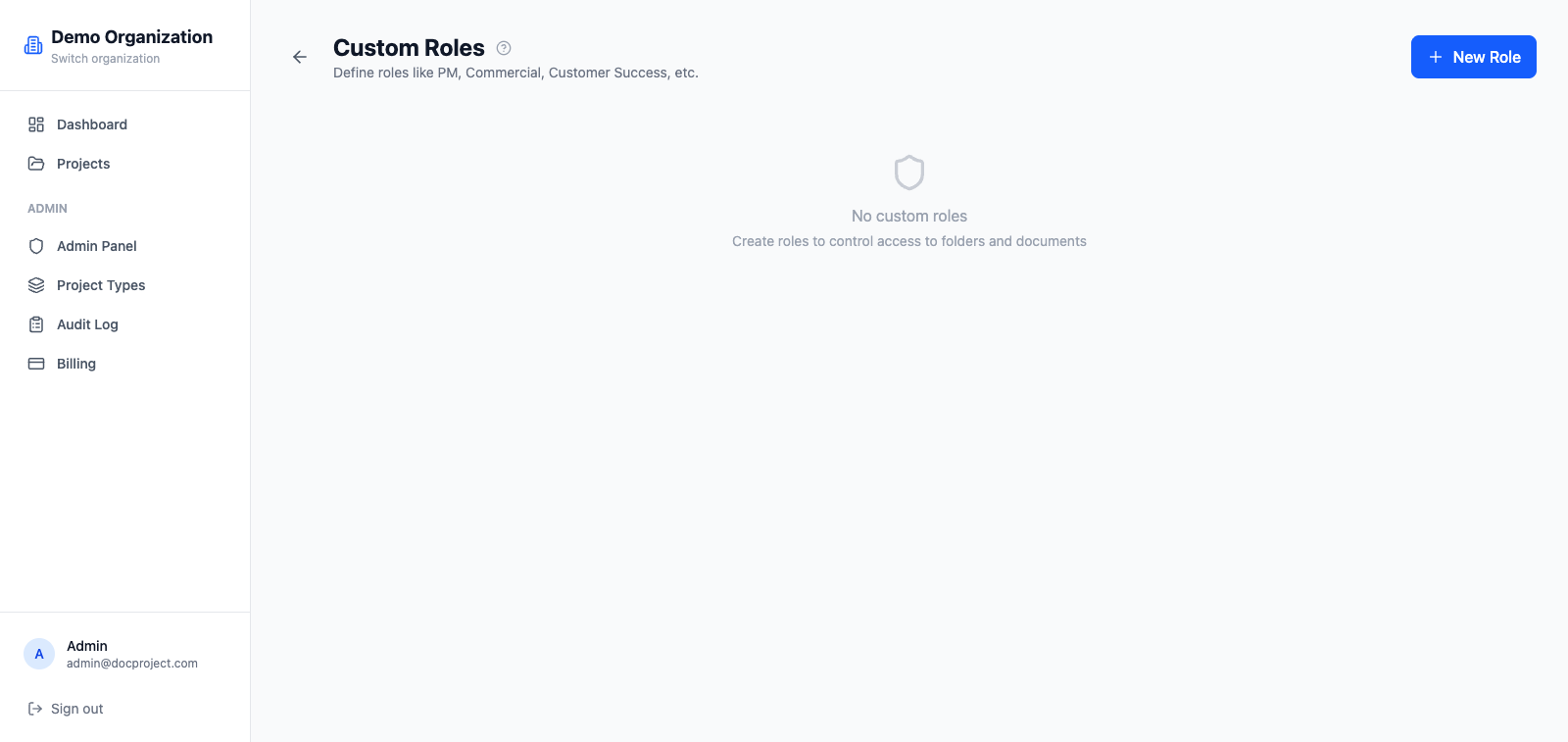
Beyond the built-in roles, you can create organization-specific custom roles with their own set of permissions, useful for positions like "Project Manager", "Commercial" or "Customer Success".
Create a custom role
- 1Go to Admin → Custom roles.
- 2Click "Create role" and enter a name and description.
- 3Pick a color to make it easy to identify in members and assignment lists.
- 4Toggle the permissions it should grant.
- 5Save.
Assign a custom role
Custom roles can be used in two places:
- 1As an extra role for an organization member (stacks on top of their base role).
- 2As a target in project, folder or document access rules; everyone with that role gets the access.
💡 Custom roles don't replace OWNER/ADMIN/MEMBER; they complement them.
Edit or delete a role
Changing a role's permissions affects every user who has it. Deleting a role is safe: it just removes the role from members; their base role stays intact.
- 1Open Admin → Custom roles.
- 2Click the role you want to modify.
- 3Update permissions or click "Delete" to remove.