Projects
Projects are where your documents live. Each project belongs to one organization and has its own members, permissions and folder structure.
Create a project
- 1Open "Projects" from the sidebar.
- 2Click "New project".
- 3Enter a name, description and optional project template.
- 4Press "Create". You're taken directly to the empty project.
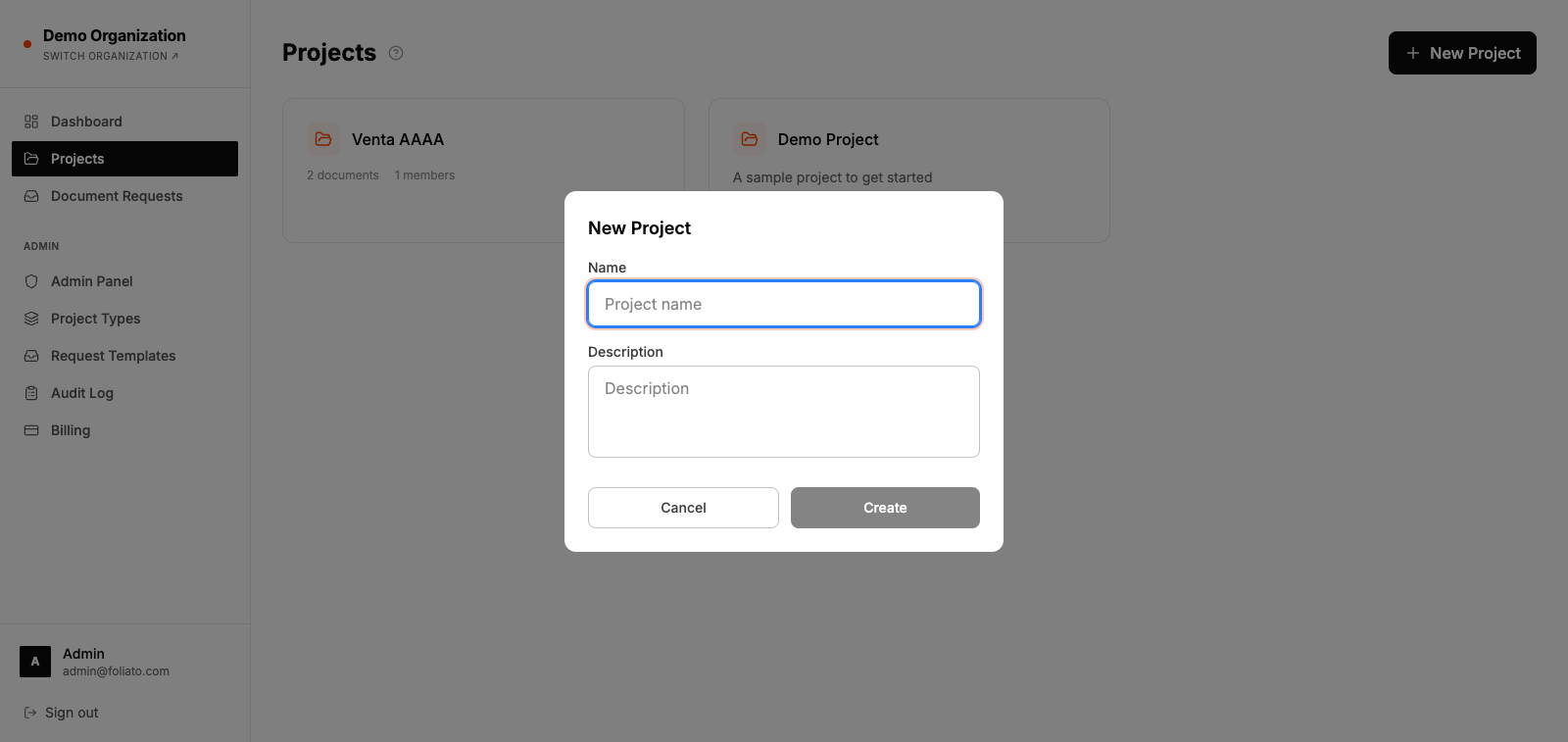
Browse projects
The projects page lists every project you belong to. Use the search box to find a project by name, description or owner; it ignores capitals and accents.
Next to the search you can filter by project type (or "No template"), switch between "All" and "Mine" to see only the projects you own, and sort by most recent, name or number of documents. A counter shows how many projects match, and "Clear filters" brings back the full list.
Your filters are kept in the page address, so they are still applied when you open a project and come back, and you can share or bookmark a filtered view.
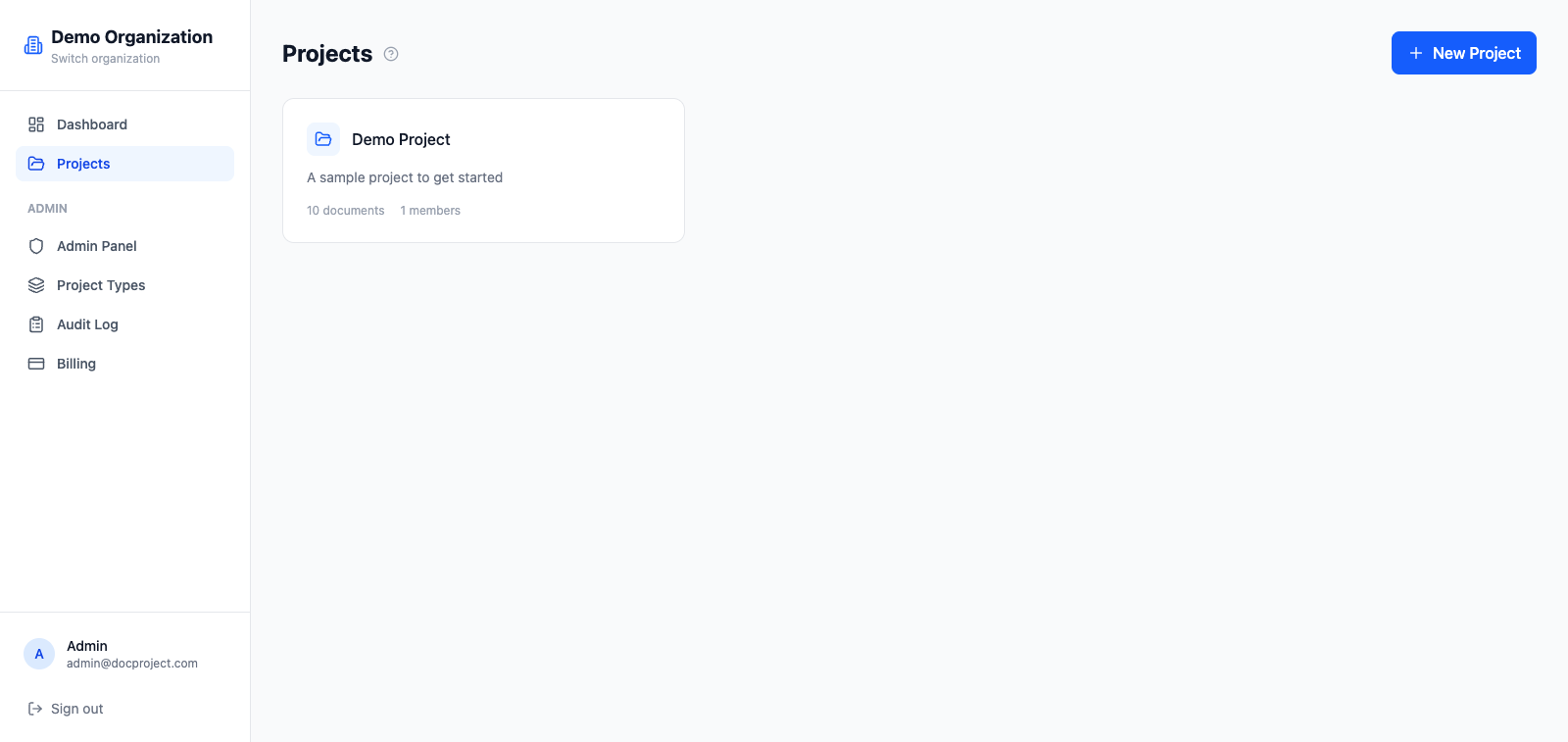
Edit settings
A project admin can change name, description and default access level at any time.
- 1Open a project.
- 2Click the settings icon in the top-right.
- 3Update the fields and press "Save".
Archive or delete a project
Deleting a project moves it and all its files to the trash, where they can be restored for 30 days before being permanently removed.
- 1From project settings, click "Delete project".
- 2Confirm by typing the project name.
- 3To restore, open Admin → Trash.