File history
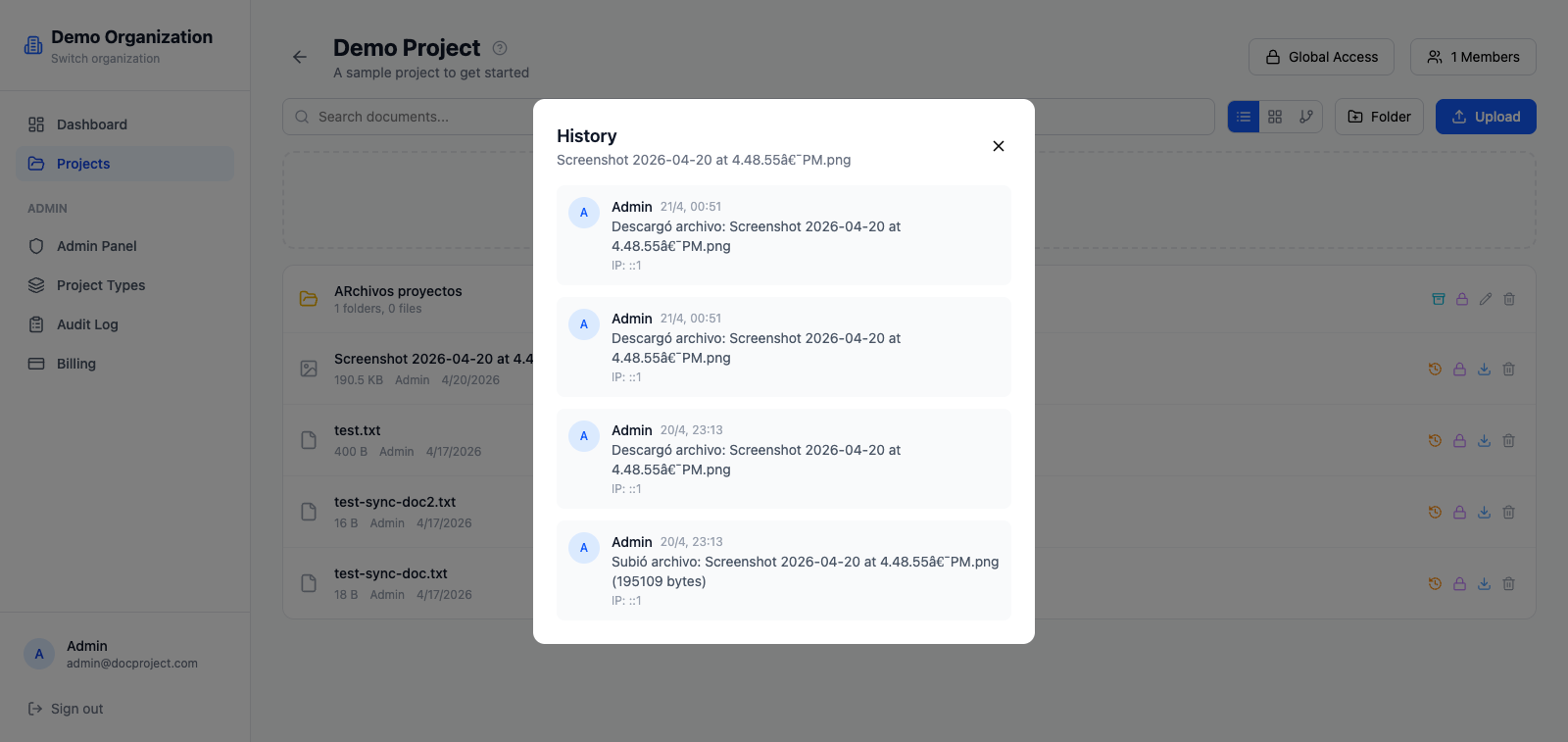
Every upload, rename, move, replace and deletion of a document is recorded on its timeline.
Open the history of a file
- 1Open the document.
- 2Click "History" in the right-hand panel.
- 3Browse the list of events; each shows who did what, and when.
What's tracked
The history captures the full lifecycle of a document:
- 1Uploads and replacements (with the actor and a checksum).
- 2Renames and moves (with the previous name or path).
- 3Access changes (who gained or lost permission).
- 4Deletion and restoration (timestamp and actor).
Restore a previous version
If a document has been replaced, earlier versions remain available on the timeline and can be restored.
- 1Open the history.
- 2Click a previous upload entry.
- 3Press "Restore this version". It becomes the new current version, and the prior one is kept in the history.
💡 Restoring does not delete anything; it adds a new entry at the top of the timeline.