Upload files
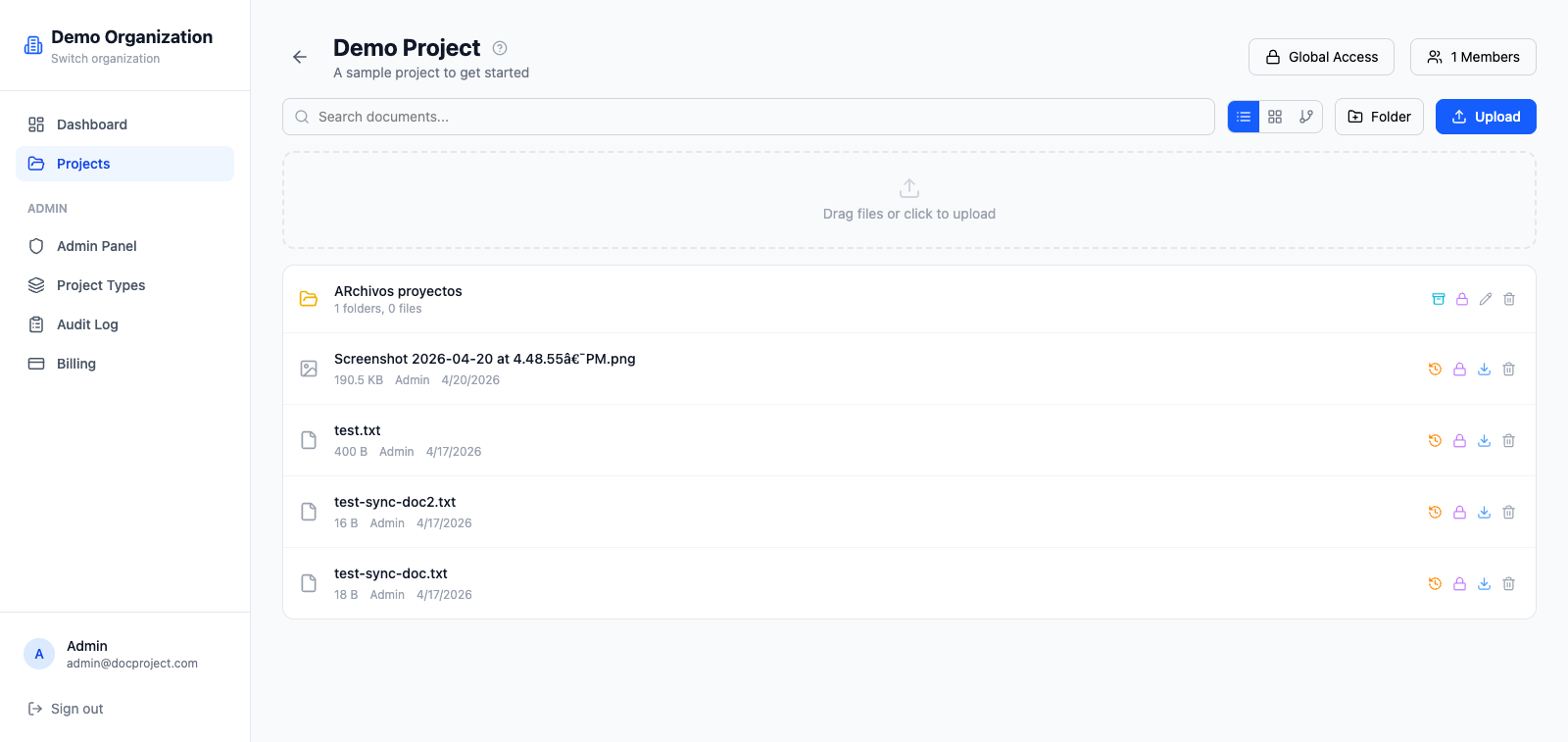
You can add files to a project in three ways: click and pick, drag-and-drop, or through the desktop sync app. All three produce the same result.
Click and pick
- 1Open the project (or a folder inside it).
- 2Click "Upload" in the top-right toolbar.
- 3Select one or many files from the native dialog.
- 4Upload progress is shown at the bottom of the screen.
Drag and drop
The whole content area of a project or folder is a drop zone. When you drag files over the browser, a blue outline shows where they will land.
- 1Open the project or folder.
- 2Drag one or many files from your file manager.
- 3Drop them anywhere inside the content area.
- 4Uploads start immediately.
💡 You can drop entire folders; their structure is preserved.
Create folders
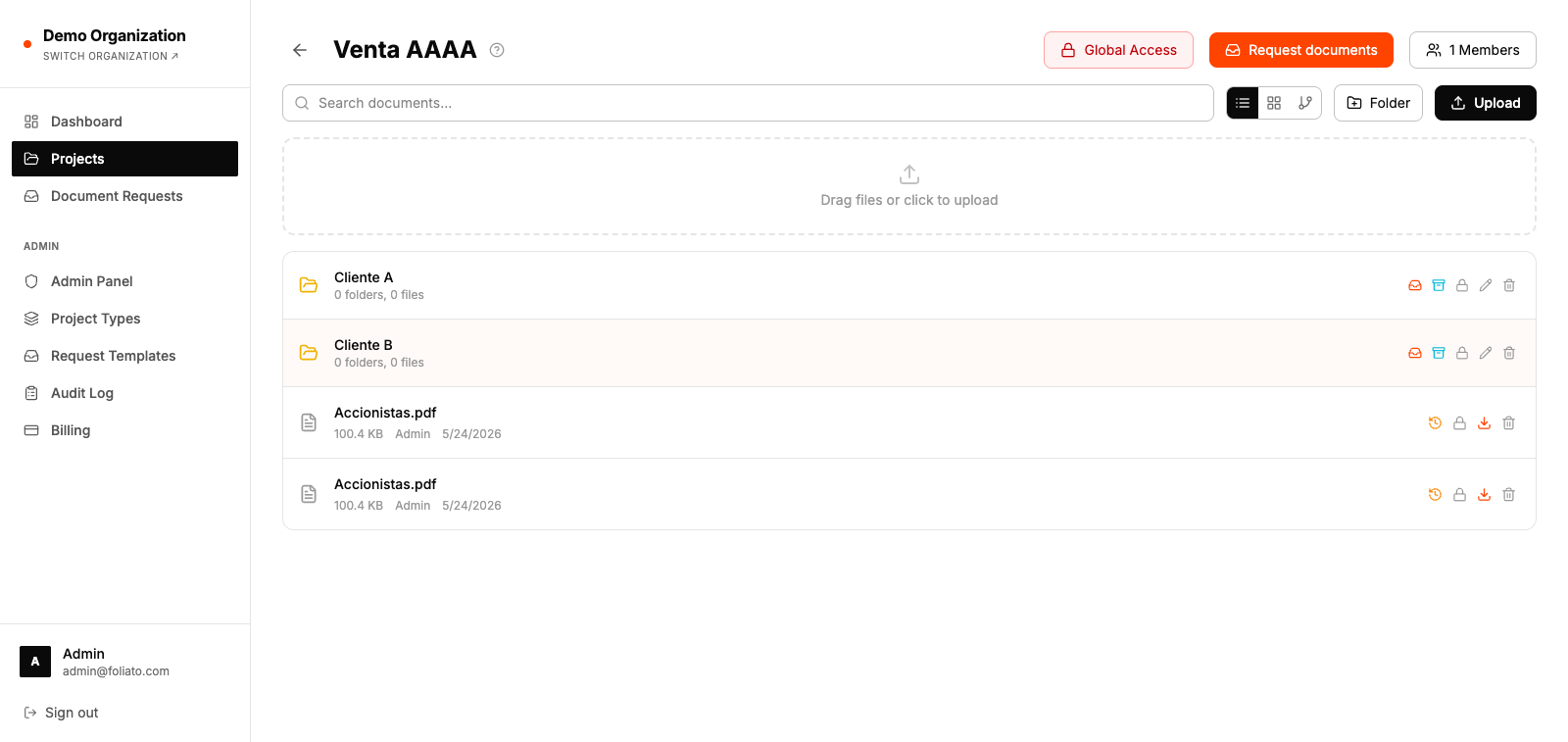
- 1Click "New folder" in the toolbar.
- 2Enter a name and press Enter.
- 3Open the folder and upload files inside.
Size and format limits
Each plan defines a maximum file size. By default the Free plan allows files up to 25 MB, Pro up to 500 MB, and Business up to 5 GB. Any file format is accepted.
💡 For very large files, prefer the desktop sync app, which handles resumable transfers.