Organize files
Once your files are uploaded, you can rename, move, tag and annotate them to keep things tidy.
Rename
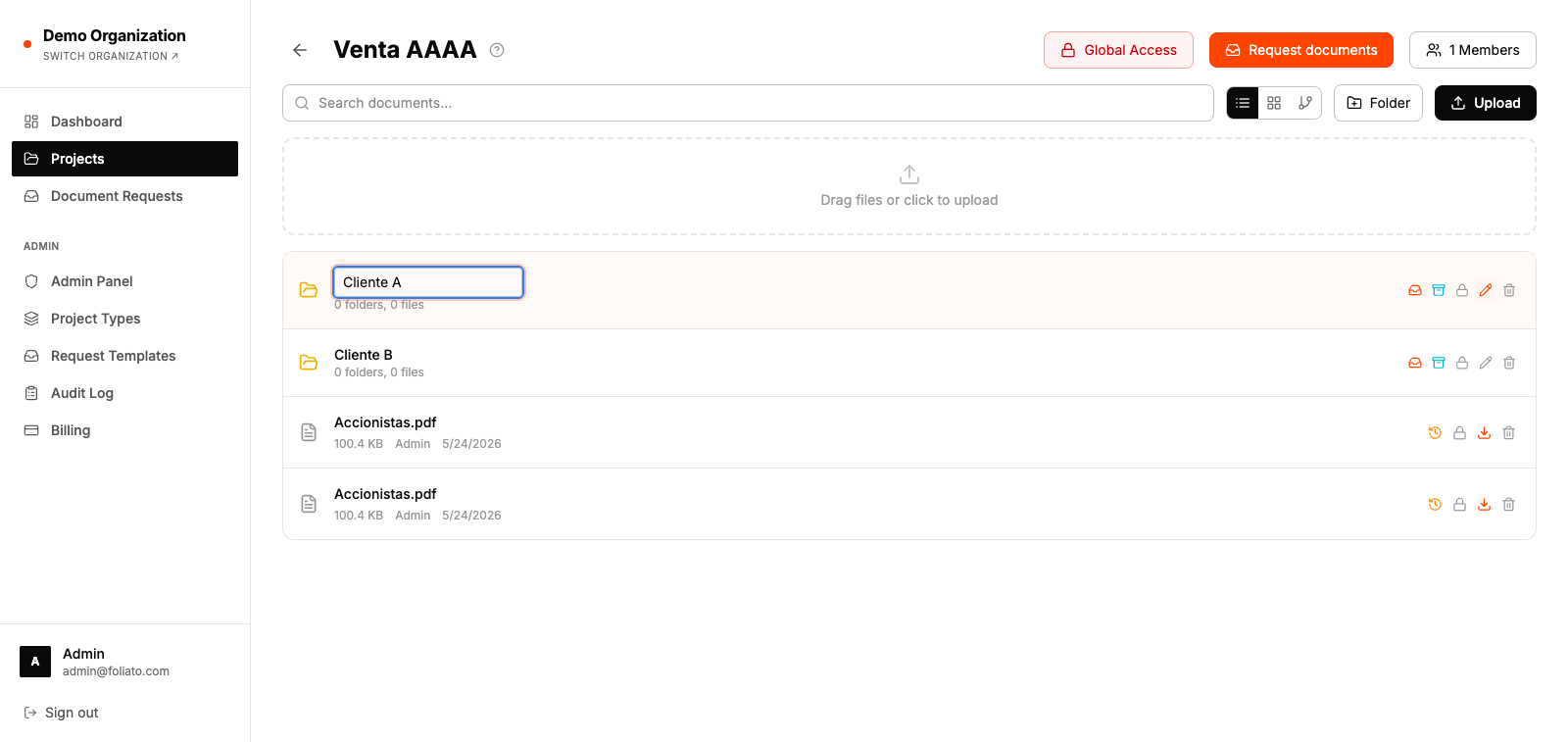
- 1Right-click a file or folder and select "Rename".
- 2Type the new name and press Enter.
- 3The change appears for everyone immediately.
Move
You can move documents and folders to any other folder inside the same project.
- 1Select one or many items (Shift or Ctrl/Cmd click to multi-select).
- 2Drag them onto a destination folder, or use the menu → "Move to" and pick a folder.
- 3Access rules of the destination are applied automatically.
Tags
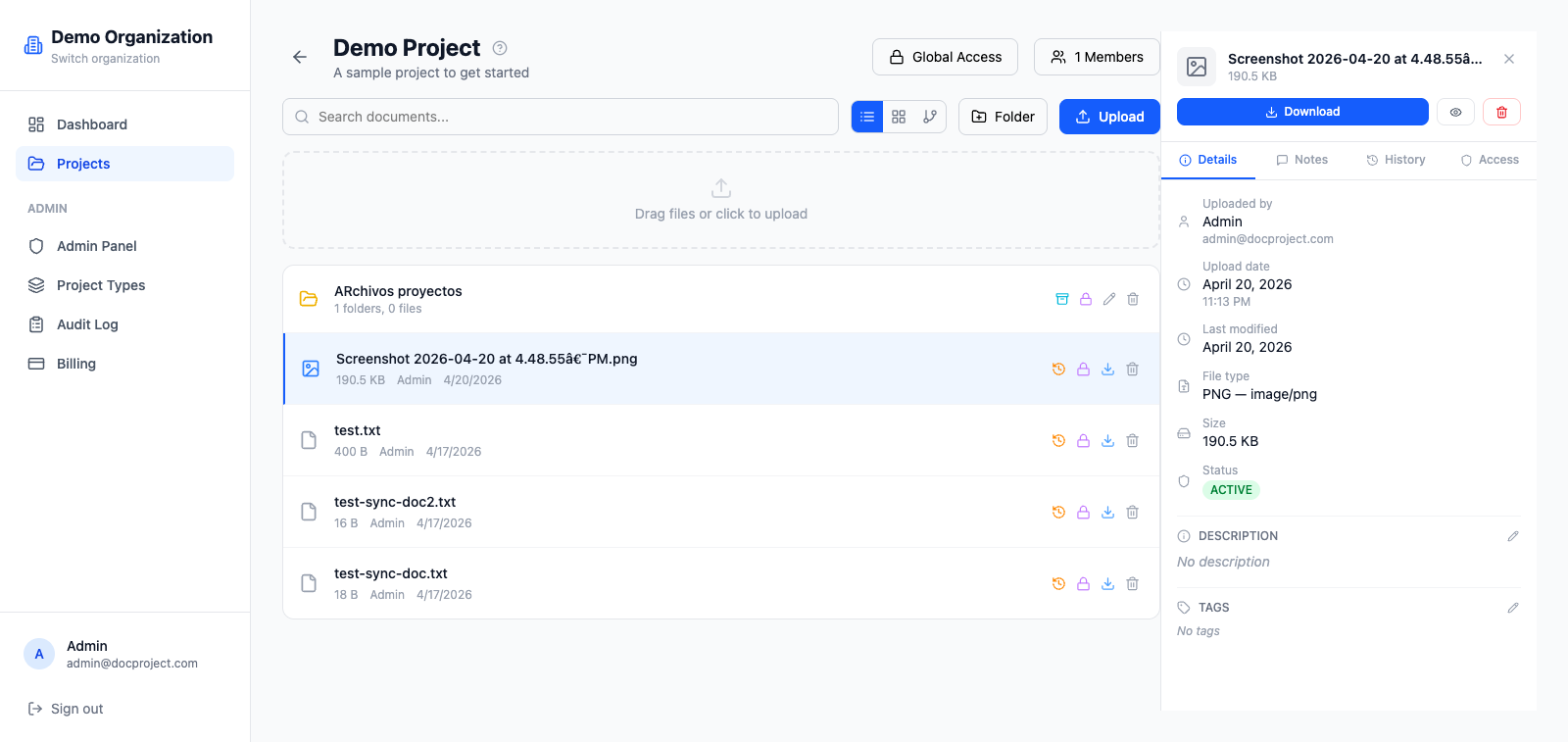
Tags are short colored labels you can attach to any document. They're useful for categorizing across folder boundaries.
- 1Open the file details panel.
- 2Click "Add tag" and pick an existing one, or create a new one with a name and color.
- 3Use the search bar or filter chips to find all files with a given tag.
Notes and comments
Each document has a chat-style notes panel where members can leave comments, mention teammates and discuss changes.
- 1Open the document and click "Notes".
- 2Type your message and press Enter.
- 3Use @ to mention a teammate; they'll get a notification.