Project templates
Project templates, also called Project Types, let admins define a reusable skeleton of folders and placeholder documents that every new project can inherit.
When to use templates
Use templates when the same kind of project repeats often: brand kits, client engagements, release checklists, etc. Instead of recreating the same folders every time, members pick the template and start working immediately.
Create a template
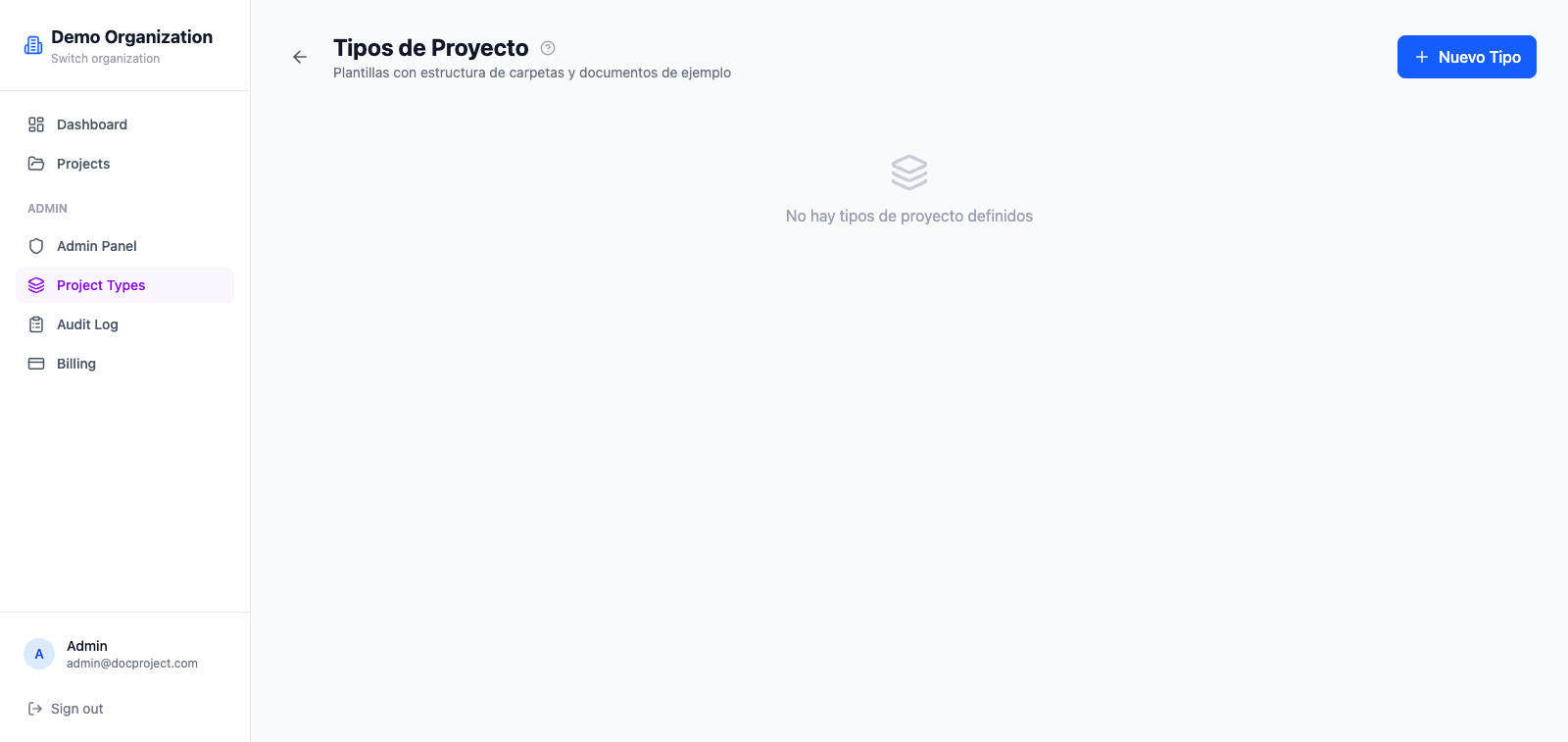
- 1Go to Admin → Project types.
- 2Click "New template".
- 3Enter a name and description.
- 4Build the folder tree and add placeholder documents where useful.
- 5Save. The template appears as an option when creating new projects.
Use a template
- 1Click "New project" from the projects page.
- 2Pick a template from the dropdown.
- 3The project is created with its folders and placeholders ready to go.
💡 Changing a template later does not affect projects already created from it.